With this technical article we launch our new monthly column "comprESSE I: a monthly dose of coding", through which we want to help programmers in their work with coding examples and tools that can be applied quickly and practically.
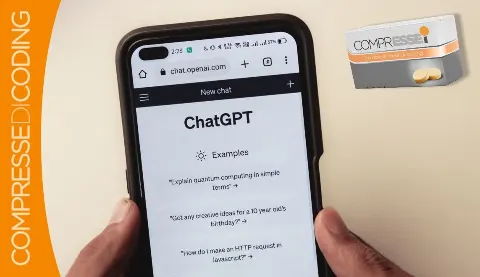
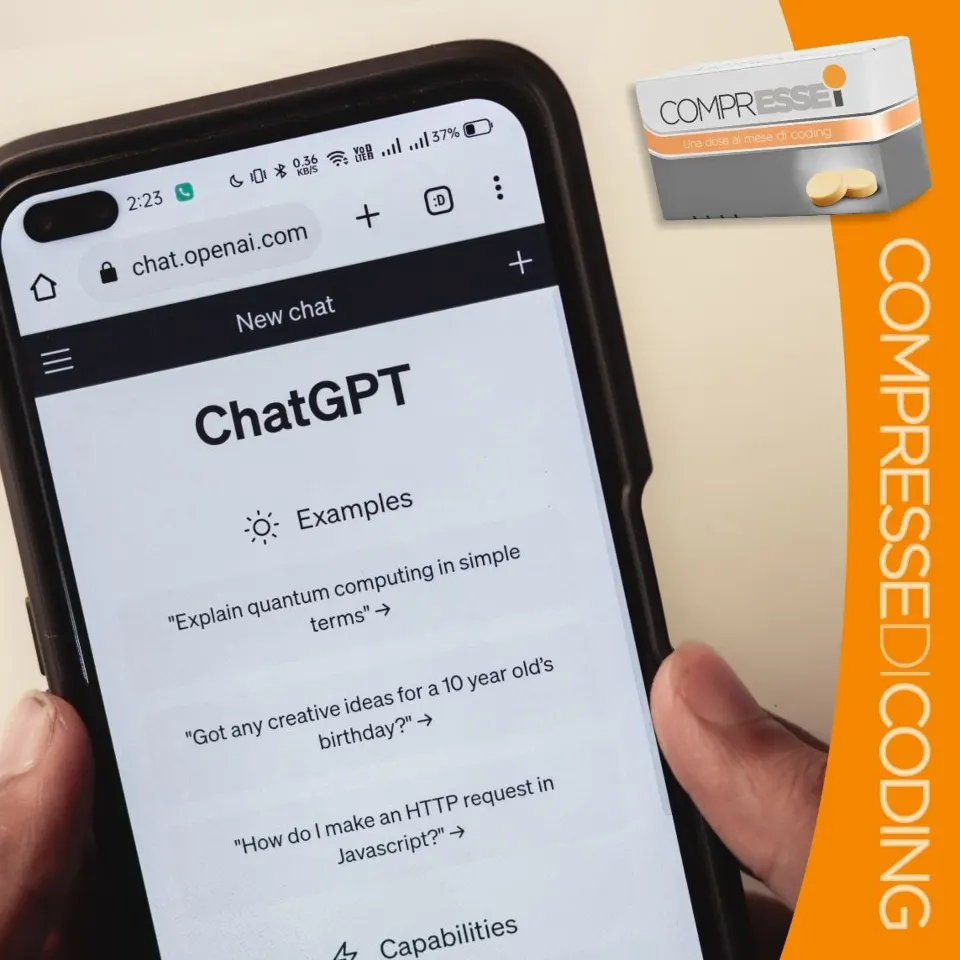
In this first issue we will talk about OpenAI, a non-profit organisation (although, as we will see, not everything is free) and "home" of the famous ChatGPT, and about how very easy it is to integrate its chatbot into one of our solutions – typically a company website – using the C# language.
But before diving into the tutorial, let's clarify what a chatbot is and what it does. Because you might think a chatbot is just an autoresponder, when in fact it is much more.
A chatbot is software that simulates human conversation in a chat or messaging context. The term "chatbot" combines the words "chat" (real-time text communication) and "bot" (short for "robot"), referring to an automated program able to interact with users through text.
Here is what a chatbot does, and some of its common applications:
- it answers questions: chatbots can be programmed to answer users' questions on a wide range of topics, providing relevant information or resources;
- it assists users: many chatbots are used to provide assistance, solve common problems or guide users through specific processes;
- it automates tasks: chatbots can carry out repetitive, automated tasks such as booking appointments, handling orders or filling in online forms;
- it gives advice and recommendations: some chatbots are designed to suggest products, services or content based on users' preferences or questions;
- it entertains: some chatbots are created purely to entertain users, offering games, interactive stories or simply fun conversations;
- it supports customers: many companies use chatbots to handle customer requests, answer frequently asked questions and offer 24/7 assistance;
- it collects data: chatbots can collect data on users and their interactions to improve future interactions and provide analytics;
- it learns automatically: some chatbots use machine learning to improve their ability to respond, adapting to users' conversations over time;
- it integrates with services: chatbots can be connected to external systems and services, letting users do things such as check the weather, book flights or order food directly from the chat.
In short, a chatbot is an application that can be used in a variety of contexts and whose capabilities can vary considerably depending on its design and features.
Now that the chatbot's role is clear, and in what context (and for what purpose) we want it to work, let's move on to the actual coding and see how to build our first personal chatbot.
To do so, in this tutorial we will use the APIs provided by OpenAI with Visual Studio. Incidentally, the good news is that there is support for using OpenAI's technologies within a C# project developed with Microsoft Visual Studio itself, both in the full version and in the Community edition.
Contents:
- Get the OpenAI API key
- Create the project in Visual Studio
- Install the OpenAI library with NuGet
- Our code
- Test the chatbot
- Conclusions
1) Get the OpenAI API key
Although using ChatGPT 3.5 on OpenAI's servers is free, its APIs are not. This means that, first of all, we need to create an account and enter our credit card. On registration you get a small free credit of 5 dollars, which is enough for a good number of tests but not enough to keep our chatbot running over time.
Once registered and with payment set up, go to https://platform.openai.com/account/api-keys and generate a new API key.
Save it somewhere safe (we will need it later) and confirm.
2) Create the project in Visual Studio
As mentioned, we will use Microsoft's Visual Studio development environment, so it must be installed on your computer (the Community edition, used to build this tutorial, is fine).
Let's create a new project:
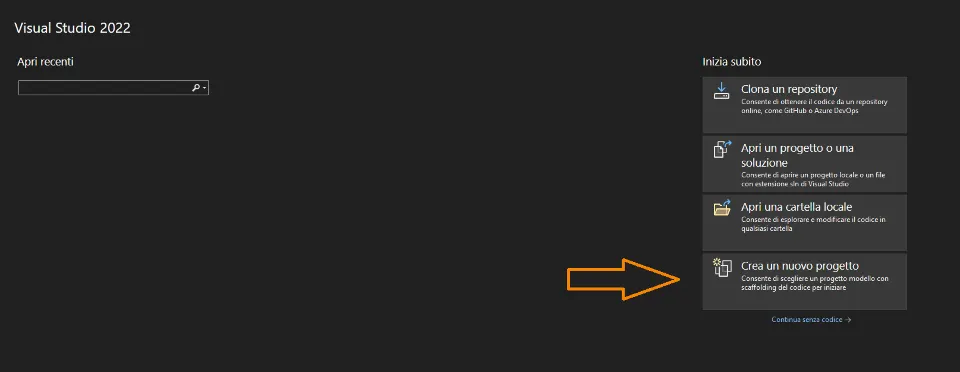
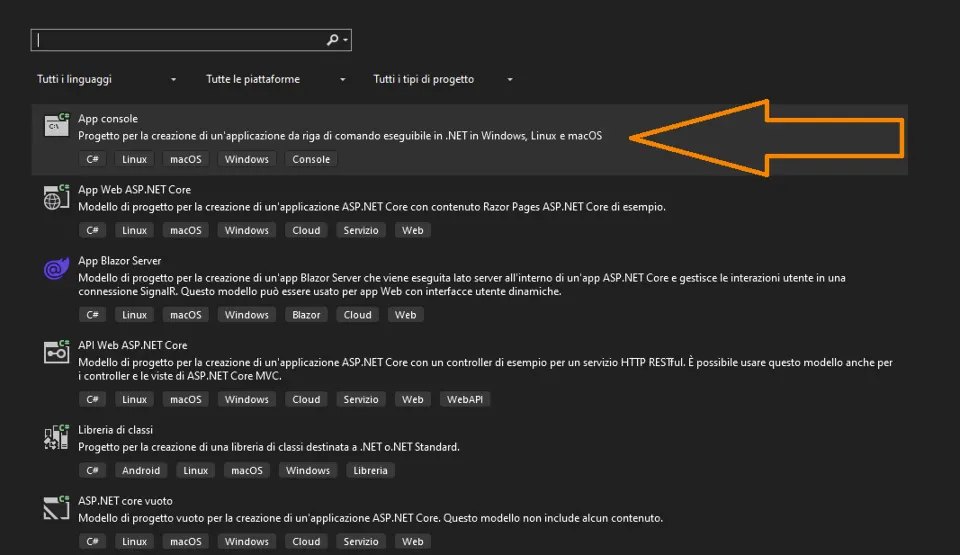
Next, we choose to create a console app that uses C#.
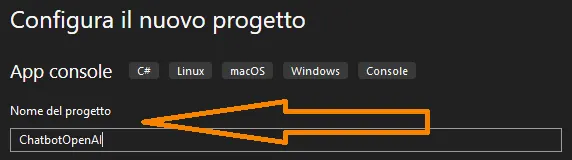
Good. Now click "Next" and give the project a name. We called it "ChatbotOpenAI". Click "Next" again.
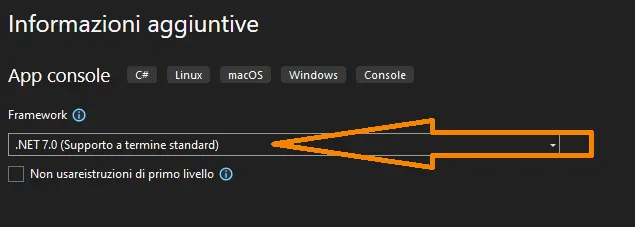
Now select the version of the .NET framework you want and click "Create".
With that done, the application's "skeleton" is ready and we can start working.
3) Install the OpenAI library with NuGet
A quick premise: there are several libraries for using OpenAI from C#. The most popular are the official Azure ones (Microsoft Azure also offers OpenAI's APIs integrated into its ecosystem) which, as well as Azure, also support OpenAI.
However, we won't use them. In this tutorial we will rely on the "Betalgo.OpenAI" libraries, so let's see how to make them available in our project straight away.
How?
First, on the right-hand side of the IDE, right-click "Dependencies" and then choose "Manage NuGet Packages…".
This is because Microsoft provides the NuGet package manager to manage dependencies.
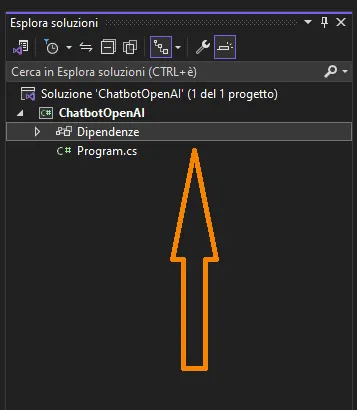
Then, in the window that appears, select "Browse" and type "Betalgo.OpenAI" in the search bar.
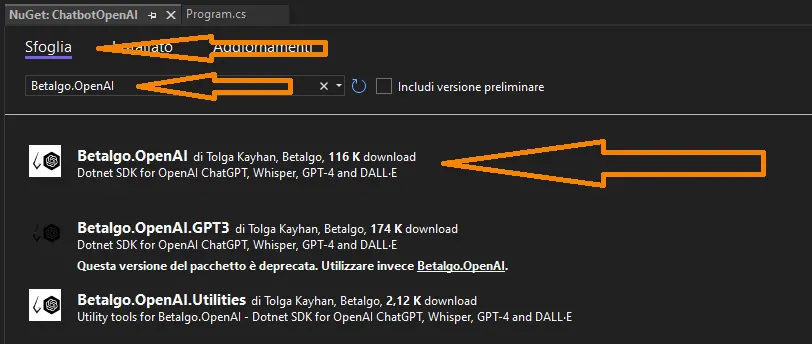
We're nearly there: click the library and install it. The environment is now ready to host and run our test code.
4) Our code
Important note: the code presented here is purely educational and does not claim to be "definitive". Essentially, it is meant to show how easy it is to create a chatbot. Software which, as we saw at the start, is "smart" because it keeps a memory of the conversation thanks to the technology offered by OpenAI.
This is also the moment to insert the API key we generated and saved earlier: just paste it in place of <INSERT_YOUR_OPENAI_API_KEY_HERE>.
Here is the code to enter in Visual Studio:
// ChatBotOpenAI
using OpenAI.Managers;
using OpenAI;
using Microsoft.Extensions.DependencyInjection;
using OpenAI.ObjectModels.RequestModels;
using OpenAI.ObjectModels;
// Load the OpenAI API key
var openAiService = new OpenAIService(new OpenAiOptions()
{
ApiKey = "<INSERT_YOUR_OPENAI_API_KEY_HERE>"
});
var HistoricalConversation = new List<ChatMessage>
{
ChatMessage.FromSystem(
"You are .NetBot, a versatile assistant designed to help programmers with C#, the .NET framework, SQL Server, Azure and, more generally, Microsoft technologies. You are friendly, approachable and give correct answers."
),
};
// Infinite loop
while (true)
{
// Write to the console
Console.WriteLine("What would you like to talk about now? (press CTRL + C to exit)");
// Read the user's input
string question = Console.ReadLine();
// Add the question to the list holding the conversation
HistoricalConversation.Add(ChatMessage.FromUser(question));
var completionResult = await openAiService.ChatCompletion.CreateCompletion(new ChatCompletionCreateRequest
{
Messages = HistoricalConversation,
Model = Models.Gpt_4,
MaxTokens = 4096, //optional
Temperature = (float?)0.7
});
if (completionResult.Successful)
{
Console.WriteLine(completionResult.Choices.First().Message.Content);
}
// Add OpenAI's answer to the list holding the conversation
HistoricalConversation.Add(ChatMessage.FromAssistant(completionResult.Choices.First().Message.Content));
};
The code is available here on ESSE I's GitHub profile: https://github.com/esse-i-dev. By the way, if you are a coder you simply MUST follow us. ;)
5) Test the chatbot
Testing the application is very simple: just click "Run" in the project and a console window will open asking us a question, to which the chatbot will reply.
The chatbot currently receives a prompt similar to the one we use at ESSE I (we use new technologies too) and is specialised in C#, the .NET framework, Azure and SQL Server: all Microsoft technologies where we feel our expertise can make an important contribution.
Read: if you want to install a great chatbot on your website or app, don't be shy and contact us!
As we said, the chatbot keeps a memory of the conversation, so you can always refer back to previous answers or questions. To exit the chatbot, just press CTRL + C.
6) Conclusions
As we have seen, creating a chatbot and integrating it into our solution is really simple.
Whereas creating a chatbot once meant programming it practically from scratch, for some years now it has been possible to use third-party APIs that help us automate our web apps.
And today we can even build one using the full power of artificial intelligence and machine learning, technologies that not only deliver better results but require minimal or even no programming.
Think, for example, of the "response flows" that certain non-AI chatbots required until not long ago, now replaced by solutions such as those OpenAI offers to coders.
What's more, training the model makes it possible over time to include information it does not yet have: a feature that makes this operation monetisable and profitable.
What did you think of this first dose of comprESSE I?
Was it fizzy and therapeutic enough? We hope so.
Let us know by joining the discussion on our social channels, sending us a message or subscribing to our free weekly newsletter.